
Every few months a leaked document turns up with a black rectangle over the sensitive part, and every few months someone discovers that the rectangle is a sticker sitting on top of the text rather than a removal of it. That failure is not exotic. It is the default outcome of the way most people redact, and it applies to screenshots just as much as to court filings.
This guide is about the difference between hiding something and removing it, why the two get confused, and a verification loop short enough that you will actually run it before you hit send.
Hiding and removing are different operations
A digital image is a stack of facts. Under a black box in a document viewer there may still be characters, still selectable, still present in the file as text. Under a black rectangle painted onto a flattened bitmap there is nothing, because the pixels that used to describe the letters have been overwritten and the original pixels are not in the file.
That is the entire test worth internalising: after your edit, is the original information still present in the file you are about to send? Not “visible” — present. A thing can be invisible and present at the same time, and that is where every high-profile redaction failure comes from.
Why screenshots are a softer target than documents
Document redaction has a long, embarrassing history because documents are structured. A PDF knows that the covered word is a word: it stores characters, fonts, positions and a text layer that exists independently of how the page looks. Covering text in that environment does not remove it, because the text was never pixels in the first place.
A screenshot is the opposite case. It is already a bitmap, so there is no text layer to select, no annotation object to drag away, no searchable copy of the hidden content. That makes the image medium inherently friendlier to redaction — and it is why the failures that do happen with screenshots are almost never about the covering. They are about the file around it: the original still in your camera roll, the metadata still describing where you were, the crop that trimmed rather than deleted, and the platform that kept a copy of the version before you edited it.
Which reframes the problem usefully. For a screenshot, the covering is the easy half. The hard half is knowing everything else that travels with the file.
The three ways a black box fails
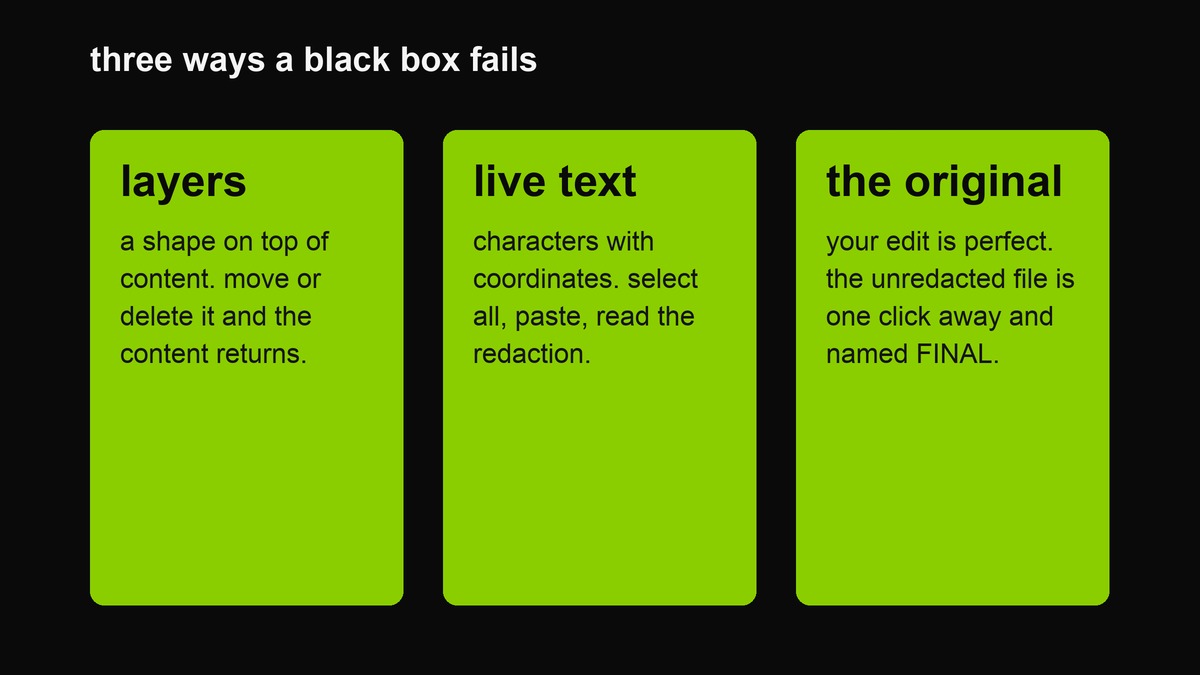 The three failure modes. All of them leave the secret in the file while removing it from view — which is exactly the state people mistake for safety.
Layers. Paint programs, presentation tools and PDF editors all support drawing a shape over content. If the file keeps its layers — a PDF with annotation objects, a PSD, a native design file, even some exported images that carry editing data — moving or deleting the shape reveals what is underneath. The rectangle is not redaction; it is an object with a position.
Live text. In a document, the words exist as characters with coordinates, not as pixels. Covering them with a shape hides them visually while leaving them fully selectable and copyable. Anyone who can select all and paste can read your redactions, and the operation takes about four seconds.
The original alongside the edit. The subtlest one. You export a redacted copy while the source file sits in the same folder, gets attached to the same ticket, or is uploaded to the same link. The redaction is perfect and useless, because the unredacted original is one click away and is also named something like contract-final-FINAL.png.
A short taxonomy of recovery
Knowing what someone actually tries helps you decide how much effort to spend. In rough order of how likely they are to attempt it:
- Select and copy. Four seconds, works on anything with a text layer, catches the majority of real-world document failures. Defeated only by flattening.
- Move or hide the shape. Works when the edit is an object in a file that keeps objects. Defeated by exporting to a format that cannot hold layers.
- Zoom and squint. Catches boxes that are slightly too small, and blur that is slightly too weak. Defeated by drawing the box bigger than you think you need and by testing at 100 per cent.
- Enhance. Levels, exposure, sharpening, and the newer family of AI restoration. This is where light blur dies. Defeated only by discarding the detail rather than smearing it.
- Read the file, not the image. Metadata, embedded thumbnails, the cropped-away region, and the alt text you typed. Defeated by re-encoding.
- Look elsewhere. The original you posted an hour earlier, the cached copy, the version history in the chat app. Nothing you do to the file survives this, which is why the honest answer to “is it really gone” is usually “no, but that is a different problem.”
Notice that the first three are cheap and the last three require the file to have been handled a particular way. Most people defend against the first three and lose on the last three.
What a real redaction has to do to the pixels
For an image, redaction means the covered region’s pixel values are replaced and nothing recoverable remains. Two mechanisms do that honestly:
- Fill — write a solid colour into the region. The original values are gone from those pixels. Simple, irreversible, and ugly, which is a feature: nobody mistakes it for an effect.
- Resample — shrink the region to a few pixels and stretch it back. This is what pixelation is: you are throwing away detail on purpose. Once flattened, the discarded detail is not in the file.
Both are safe only after flattening — the moment the output is a single-layer bitmap with no editing data attached, the operation is real. That is why exporting matters as much as covering: the same box in a layered file and in a flattened PNG are two different security properties.
Blur is the weak case. Blurring averages neighbouring pixels; heavy blur discards enough that recovery is impractical, but light blur is a reversible-ish operation, and there is a whole genre of tooling that sharpens blurred text back into legibility. If you use blur, use more of it than feels elegant, and treat anything you can squint through as recoverable.
The metadata problem, which is not about the picture
Images carry descriptions of themselves. Photographs commonly carry camera model, exposure data, timestamps, sometimes GPS coordinates; screenshots carry capture time, display information, and whatever the tool that made them decided to note. File names are metadata too, and so is the alt text field on a platform that lets you fill it in.
Two consequences. First, redacting the visible part of an image does nothing about any of that — a fully blacked-out boarding pass can still be carrying a location and a time. Second, cropping is not deleting: cut an image down and the discarded area may still be inside the file, which is how “I cropped out the address” becomes a lesson in why you should re-encode rather than trim.
The practical answer is to re-export rather than re-save. Encoding to a fresh PNG through a canvas — which is what a browser tool does when it draws your image and hands back a new file — produces a file whose only content is the pixels you can see. There is a reason the tool on this site exports rather than “keeps your edits”: the export is the sanitiser.
What the platform does after you send it
Your file arrives somewhere that has opinions about it. Social and chat platforms re-encode images, which is usually good for you here: a re-encode flattens layers and drops most metadata. But they also do three other things worth knowing about.
They keep the previous version. Edit a sent image in a chat app and the earlier copy may remain reachable through the edit history. If the first upload was unredacted, the redaction is decoration on the second copy only.
They generate their own derivatives. Thumbnails, preview crops and link cards are made from the file you uploaded, and they can outlive the thing you deleted. Deleting a post does not always reach every artefact made from it.
They read the image. Automated systems extract text from pictures for search, moderation and accessibility. That is convenient until the text they extract is the text you meant to hide — the same operation that makes your screenshot searchable for a friend makes it searchable for whoever has the keys.
The practical conclusion is uncomfortable but simple: the platform is not the place you establish secrecy. Redact before the first upload, because the first upload is the one that is hard to take back.
The five things people forget to cover
- The notification banner. It arrived while you were capturing, and it contains a person’s name, their photo, and what they said about you.
- The browser chrome. Bookmark titles, the profile avatar in the corner, and the URL — which is often the most identifying thing in the frame.
- The clock, battery and carrier. Individually harmless, together a timestamp and a device. In a screenshot of a conversation, they place you.
- The avatar-and-display-name pair. Covering the handle but leaving the profile picture links the anonymous post to a face, and people are frighteningly good at resolving that.
- Whatever is behind the subject. A whiteboard with a client name, a door number, a shipping label, a second monitor. Screenshots of screens and photos of desks both leak this way.
A verification loop you will actually run
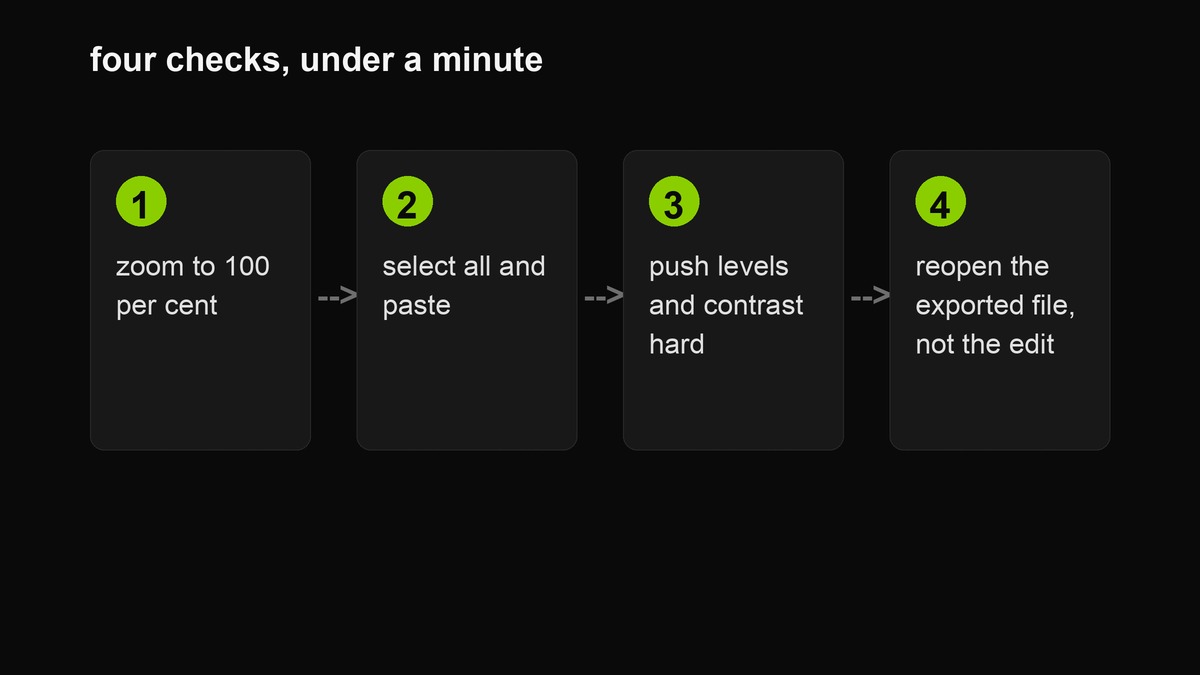 Four checks, under a minute. The last one is the one that catches everything the first three missed.
One: zoom to 100 per cent. Not fit-to-window. At full size, a weak blur shows structure and a too-small box shows text peeking past its edge.
Two: select all and copy. Paste the result into a text field. If anything readable appears, you have a live-text problem, not an image problem — and the fix is to re-render as pixels rather than to draw a bigger box.
Three: push contrast and levels hard. Open the file in anything with a levels slider and drag exposure and shadows to absurd values. Recoverable detail will surface immediately. This is the cheapest simulation of what a motivated recipient will do.
Four: reopen the exported file, not your working copy. Every failure that survives the first three checks is a failure of the export — a layer kept, an original attached, a name that says too much. Look at the artefact you are actually sending.
Redacting in a hurry: what is safe to shortcut
Nobody does the full loop under time pressure, so it is worth being explicit about which shortcuts hold up and which do not.
Safe to shortcut: the metadata pass, provided you are exporting a fresh PNG through a canvas or a screenshot tool rather than saving over the original. The re-encode does the work for you.
Safe to shortcut: the levels test, provided you used solid fill rather than blur. Solid fill has nothing to recover, so the test would pass anyway.
Never shortcut: box size. Draw it larger than you think necessary. The failure mode is a two-pixel strip of descender outside your rectangle, and it is the most common way a careful redaction still leaks the answer.
Never shortcut: the edges. When you are rushed you look at the content you meant to share, which is exactly the part that was never at risk. Scan the banner, the bar and the corners first — three seconds, and it is where the real disclosures live.
Never shortcut: sending the original by accident. If the unredacted file is still in your recent-uploads strip or your clipboard, that is the failure that ends the exercise. Redact, export, and send the export — never the file you started from.
When a screenshot is the wrong medium entirely
If the document is a PDF, a Word file or anything else with real text, covering it in an image editor is the wrong tool: you are flattening a document into a picture, which destroys accessibility and searchability for the parts you did want readable. Proper document redaction removes the underlying objects, and institutions that do this for a living publish guidance on it — the UK National Archives’ redaction toolkit is a good, blunt read on what a real redaction has to survive.
Likewise, if the goal is to share a document with a named person and control what they can copy, redaction is the wrong layer of defence entirely. Once it leaves your machine it is theirs; the only honest model is “whatever I send may be read in full by anyone who receives it.” Redaction exists to make that statement true for the parts you covered, and nothing less counts.
FAQ
Is pixelating safer than blurring?
At comparable effort, yes. Pixelation discards detail by resampling; a light blur preserves enough that enhancement can bring it back. If you blur, blur hard enough that you cannot guess the content yourself.
Does a black rectangle in a screenshot app count as redaction?
Usually yes, because the screenshot app is drawing into the bitmap before export — but “usually” is not a security property. Run the four checks. The one that matters is whether the exported file still contains the original pixels.
What about the original screenshot I started from?
It still exists on your device with everything visible. Redacting a copy does not modify the source, and if you have already uploaded the source somewhere, no downstream editing undoes that.
Is removing metadata enough once I have covered the text?
Metadata removal handles what the file says about itself; covering handles what it shows. You need both, which is why re-exporting through a canvas is convenient — the new file has neither the hidden pixels nor the old description of them.
Is a solid black box better than pixelation?
For information that must not be inferred, yes — a solid fill leaves nothing at all, while pixelation at low strength still leaks shape, length and the rhythm of a word. Pixelation has one advantage: it tells the reader something was there, which is honest in contexts where an unexplained black box reads as concealment. Choose based on whether the fact of hiding matters more than the content hidden.
Does the tool on this site remove the original pixels?
Yes. Each region is resampled into the canvas and the export is a flattened PNG drawn from that canvas, so the covered pixels are not in the output file. What it cannot do is touch the file you started from, or anything you already uploaded.
Can this be done on a phone?
Yes, with the same loop: mark up, export, then open the exported file and run the zoom and levels checks in your photo app. The step people skip is the last one — inspecting the export rather than the edit.
Sources
- The National Archives (UK) — Redaction Toolkit on what a redaction has to actually remove, and how failures are discovered.
- MDN — canvas pixel access, for how a browser reads and rewrites pixels, which is the mechanism behind a flattened export.
- ExifTool — the reference implementation for what metadata an image can carry, and how to inspect your own files.
General guidance, not legal or compliance advice. If you are redacting something with contractual or statutory consequences, use a tool that documents what it removes and follow your institution’s procedure. This site is independent and unaffiliated with any artist or label.
[…] the redaction guide covers how to make a covering actually remove; the redactor does it in the browser; and the […]